BFA web interface
A local web app for building speech–text datasets with Bournemouth Forced Aligner. Load a recording, type or transcribe what is said, align it, then check and correct every phoneme over a spectrogram or waveform.
It runs on your own computer. Your audio and alignments stay in your browser; the local server only does the computing and keeps nothing.
Under construction. The workflow below is complete, but details may still change. See Future development.
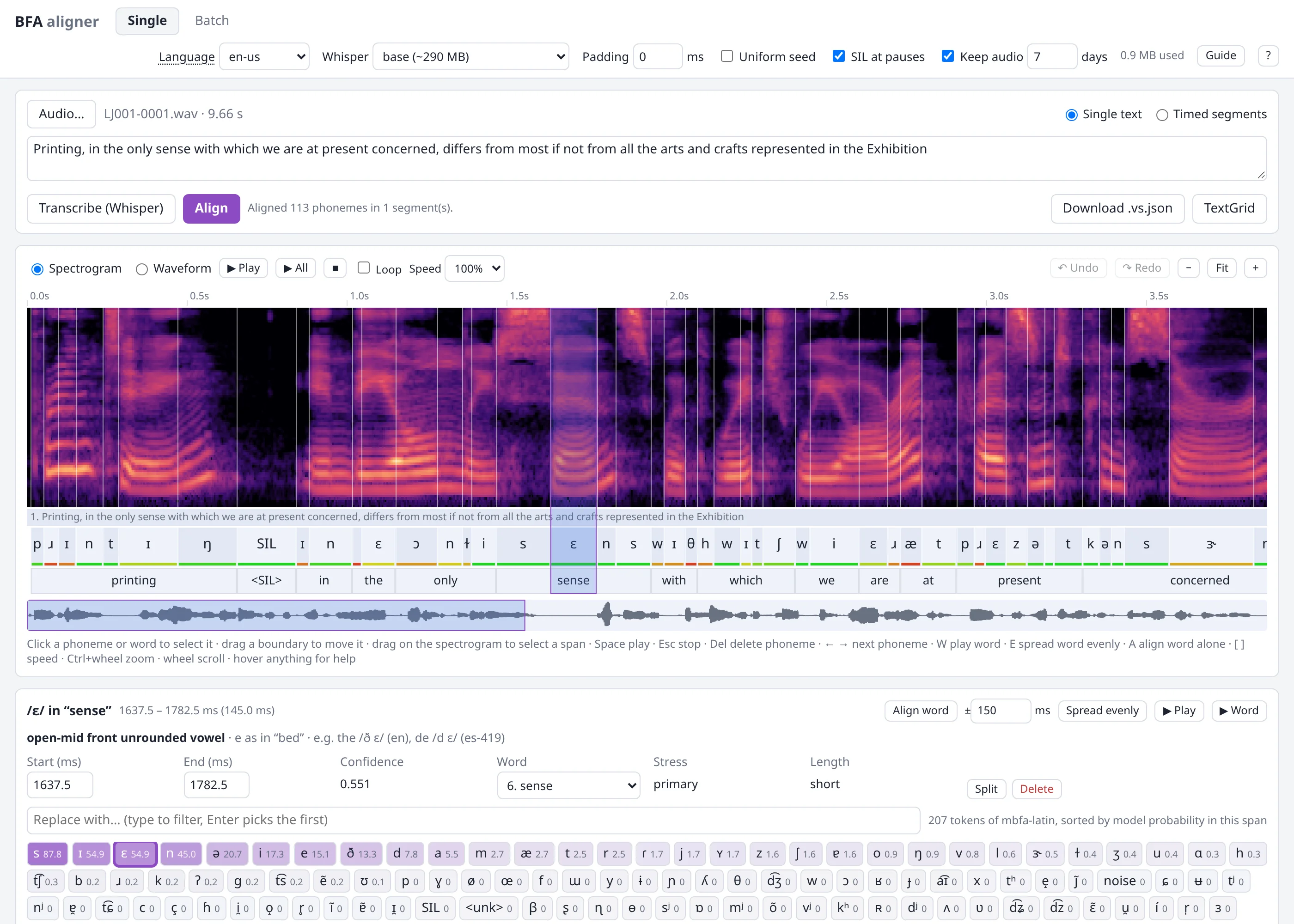
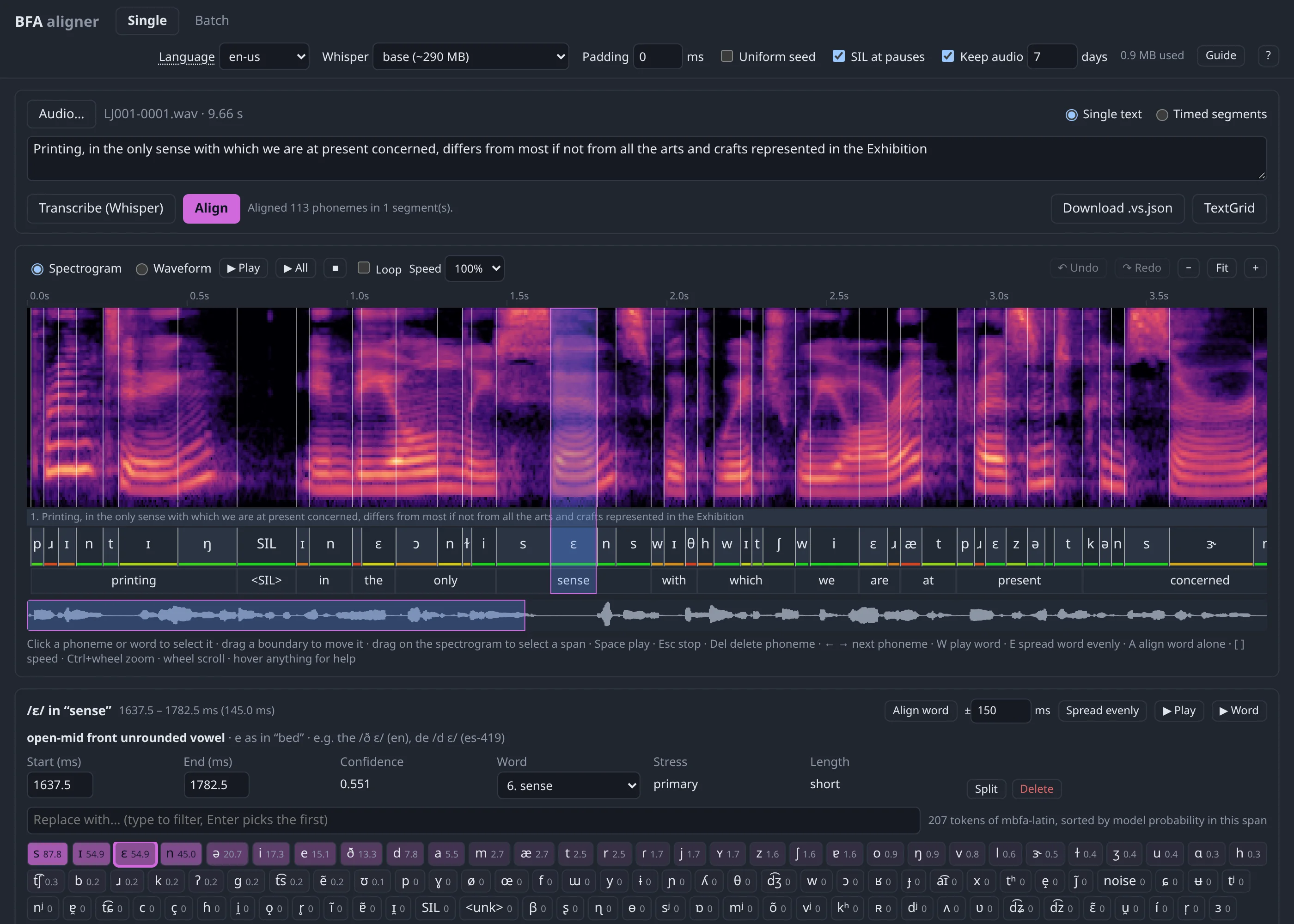
Start it
A browser tab opens at http://localhost:7860. Stop the server with Ctrl+C in the terminal.
| Option | What it does |
|---|---|
--port 8000 |
Use another port (default 7860). |
--no-browser |
Do not open a browser tab; open the address yourself. |
--device cpu / cuda |
Where the models run. Default: the GPU if there is one. |
--host 0.0.0.0 |
Listen beyond this computer. Anyone who can reach it can run jobs, so only do this on a network you trust. |
The first alignment downloads the aligner model of the language group (~55 MB) and the G2P model (~1.2 GB), once. The first transcription downloads the Whisper model you chose. After that, no internet is needed.
Chinese, Cantonese, Japanese and Thai are written without spaces, so their text first needs a word
segmenter. Install the matching extra once: pip install "bournemouth-forced-aligner[yue]",
[ja] or [th]. Mandarin needs nothing extra. Which languages are supported, and in which group:
language support.
The screen
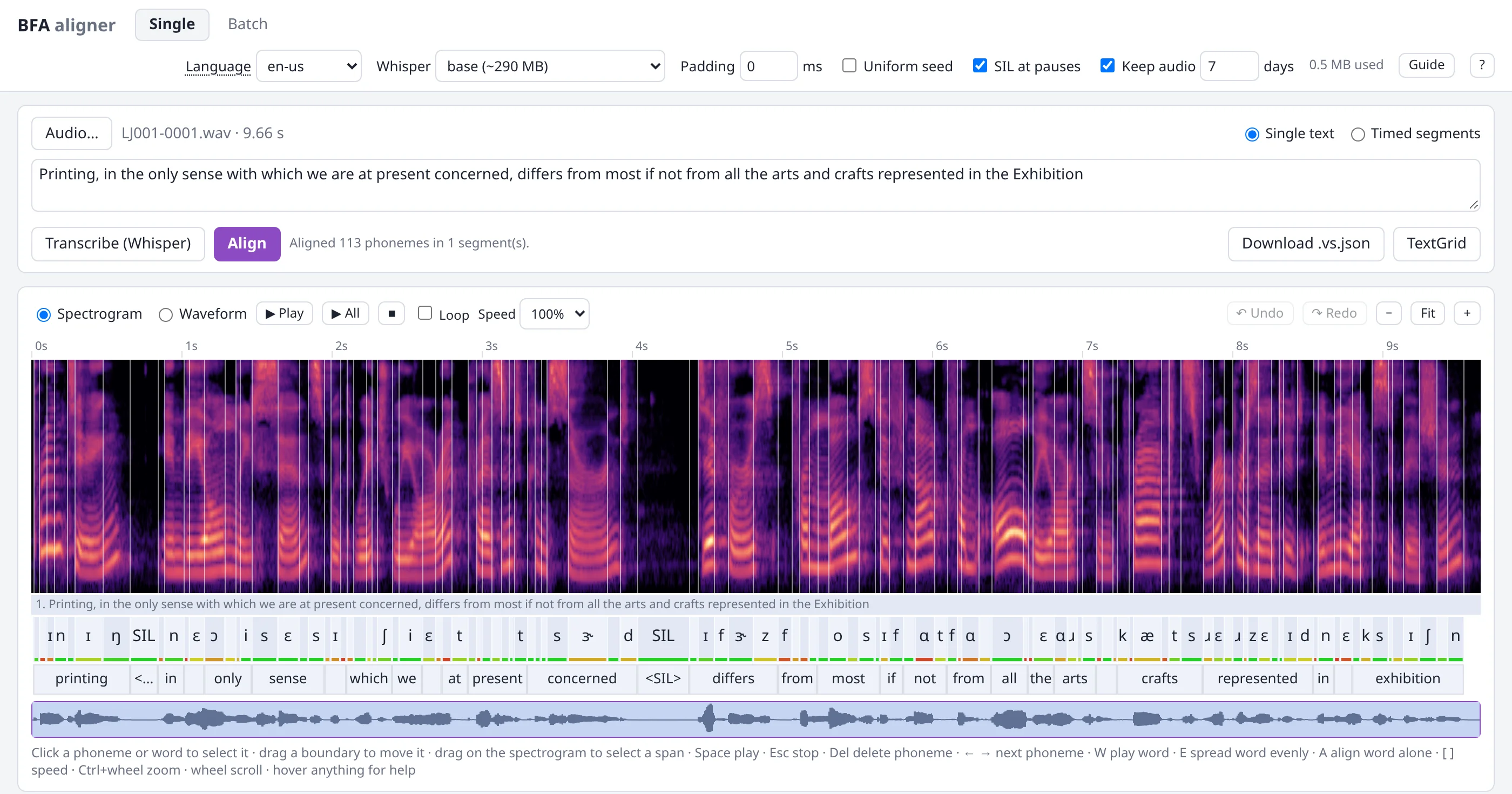
Top bar. Every control has a tooltip: hover it.
| Control | What it does |
|---|---|
| BFA aligner | Opens this project on GitHub. |
| Single / Batch | One recording at a time, or a list of many (see Batch mode). |
| Language | Picks the aligner model and the G2P. Set it before Align: a clip keeps the language it was aligned with. Click the word "Language" for the list of supported languages. |
| Whisper | Model used by Transcribe. Larger is better and slower. |
| Padding | Extra audio played before and after a phoneme or word, in ms. 50–100 ms makes short sounds easier to hear. It never changes the alignment. |
| Uniform seed | Starts every clip from evenly spread phonemes instead of BFA's boundaries (see Uniform seed). |
| SIL at pauses | Lets Align put a silence at every pause punctuation mark (see Pauses). On by default. |
| Keep audio / days | Keeps audio in the browser so a reload loses nothing, for this many days. |
| Guide | What every phoneme symbol and tone number means. |
| ? | This page. |
Input card. Audio, text, and the Transcribe, Align and Download buttons.
Editor, from top to bottom:
- Ruler in seconds. Drag on it, or on the spectrogram, to select a span.
- Spectrogram (or Waveform, switch in the toolbar). White lines are phoneme boundaries. They are hidden when you are zoomed out too far to tell them apart.
- Segment tier: the text segments.
- Phoneme tier: one box per phoneme.
- The coloured bar under each box is the model's confidence: red low, green high.
- An orange dot means you edited it.
- Word tier.
- Overview strip: the whole recording. The box shows what is on screen; drag it to scroll.
Inspector, under the editor: details of what is selected, and the buttons to change it.
Aligning a recording
- Audio…: choose a WAV, FLAC, OGG or MP3 file (any sample rate). The page starts with a demo clip, "butterfly", that you can align right away.
- Enter what is said:
- Single text: type it all into the box. Best for clips up to about 30 s.
- Timed segments: a table of start, end and text, for long recordings. Segments may leave gaps (music, silence) but must not overlap. + Add segment adds a row; ▶ plays one.
- Or press Transcribe (Whisper), which fills the segment table for you. Always check its text: alignment follows the text exactly, so a wrong word becomes wrong phonemes.
- Text tips:
- Write numbers and abbreviations as words ("twenty five", not "25"). The G2P does not expand them.
- Punctuation is not spoken, but pause marks matter: see Pauses.
- Type
<SIL>where the speaker pauses and there is no punctuation. - Align. The status line says how many phonemes were placed.
- Correct the result (next section).
- Download .vs.json keeps everything, so you can load it again later. TextGrid is for Praat.
Aligning again replaces the alignment and discards all edits, so it asks first.
Pauses
With SIL at pauses on, Align writes an optional silence (SIL) at every pause mark:
, . ; : ! ? …, dashes, and the Chinese marks ,。!?;:、. Without one, a pause has nowhere to go,
so the phone next to it swallows it. In the 30 s test clip, a 0.6 s pause after "fingertips."
became a 565 ms /p/. The aligner skips a SIL where the speaker did not pause, so leaving this on
costs nothing.
Correcting an alignment
A routine that works
For each clip:
- Press ▶ All once to hear it. Set Padding to about 80 ms and Speed to 50% when sounds are short.
- Go word by word (click a word, then ← → through its phonemes). For each word:
- If it is far off, run Align word (A) first, or drag over where you hear it and use into this span.
- Fix its two outer boundaries, then Spread evenly (E) if its inside is a mess.
- Fix the inner boundaries. Play each phoneme (Space) and the word (W) to check.
- Fix pauses: shorten the phone that swallowed a pause, then insert a
SILin the gap. - Batch mode: tick Done. Download often.
Agree on where boundaries go before several people annotate. Each phoneme guide starts with suggested conventions (stops start at the closure, aspiration belongs to the stop, and so on).
Selecting and playing
- Click a phoneme or word in its tier to select it; click a segment in the segment tier.
- ← → move to the previous or next phoneme. Double-click anything to zoom to it.
- Drag on the spectrogram or ruler to select any span. It plays like a phoneme.
- Space plays the selection, with the padding. With nothing selected it plays the visible part from where you last clicked. W plays the selected phoneme's word. Esc stops.
- Loop repeats until you stop it.
- Speed (or
[slower,]faster) plays at 75, 50, 33 or 25%. The audio is stretched in time, so the pitch stays natural; a long span takes a moment the first time.
Moving boundaries
- Drag a boundary in the phoneme or word tier, or on the spectrogram when its line is drawn. The cursor turns into ↔ over a boundary. A boundary can never pass its neighbours.
- A boundary two phonemes share moves for both. Between words, it moves both words' edges.
- For exact values, type Start and End (ms) in the inspector and press Enter.
- Zoom in with Ctrl + wheel, +, or a double-click. The wheel scrolls; Fit shows everything.
Changing labels and words
- Replace with…: the inspector lists every token of the model.
- They are sorted by the model's probability for the selected span, and shaded: the darker, the more likely.
- Hover a token to see what it is, with example words. Click it to relabel.
- Type into the filter to find one by symbol (
tshows t, tʰ, t͡ʃ …) or by name (nasal,rounded). Enter picks the first match. - Only the model's own tokens are offered, because it cannot learn or score anything else.
- Word: moves a phoneme to another word, when it is on the wrong side of a word boundary.
- Tone (tonal languages only): named per language, e.g. "214 Tone 3, dipping". It comes from the dictionary, and never moves a boundary.
- Stress and Length are shown only; the model does not predict them.
Adding, removing, redoing
- Split cuts a phoneme in two at its middle. Relabel one half to add a sound the G2P left out.
- Delete (Del) removes a phoneme and leaves a gap. Click the gap and press Insert phoneme
here to fill it. The new phoneme is the model's best guess for that span: relabel it, for
example to
SIL. - Spread evenly (E) shares a word's time out equally between its phonemes.
- Align word (A) runs BFA on the selected word alone, in a window of its span ± the padding beside the button (150 ms). An isolated word usually aligns much better than inside a long sentence.
- Your labels are kept, fixes included; only the times change.
- The phonemes just before and after the word are trimmed if they overlap.
- For a word that is far off, drag over where you hear it, pick the word in the inspector, and press into this span.
- Undo / Redo: Ctrl+Z / Ctrl+Shift+Z (or Ctrl+Y), up to 200 steps per clip. They are lost on reload.
After every edit, confidence is recomputed from the model's own probabilities, and words and the per-phoneme lists are rebuilt the way BFA builds them.
Batch mode
- Switch to Batch. Drop audio files into the panel on the left, or Choose files. Add the
.vs.jsonfiles you downloaded earlier to carry on where you stopped. - Each
.vs.jsonis paired with its audio by theaudio_filename stored inside it. Older files without one pair by name:x.vs.jsongoes withx.wav. - Click a file to open it. Its badges show its state:
no audio,not aligned,uniform,edited,done. - Align, correct and tick Done on each, as in single mode.
- Download all (.zip) saves every aligned clip's
.vs.jsonat once. - Clear list removes everything from this browser. Download first.
Uniform seed: reference data that favours no aligner
Annotators who correct an aligner's output tend to keep its boundaries. On L2-ARCTIC, 89% of the hand-checked phone onsets sit exactly on the MFA alignment the annotators started from, so that corpus scores any MFA-like aligner too well. To build data that is fair to every aligner, present or future, turn on Uniform seed before you start:
- After Align, each word boundary is moved a random 20–40 ms earlier or later. A boundary two words share moves once, so they stay adjacent. Then each word's phonemes are spread evenly across it. Words, labels and tone are kept; no aligner's phoneme boundary is left, so every boundary in the result is the annotator's own call.
- Turning it on resets every alignment in the browser that is not seeded yet; it asks first.
Batch
.vs.jsonfiles imported while it is on are reset the same way. - A file that already carries a uniform seed is never reset again, so corrections are safe.
- Align word puts BFA's boundaries back for that word. Its phonemes are marked
"realigned": trueso they can be told apart later. Use it sparingly in this mode. - The badge next to the file name shows the clip's seed; hover it for details.
Phoneme and tone guide
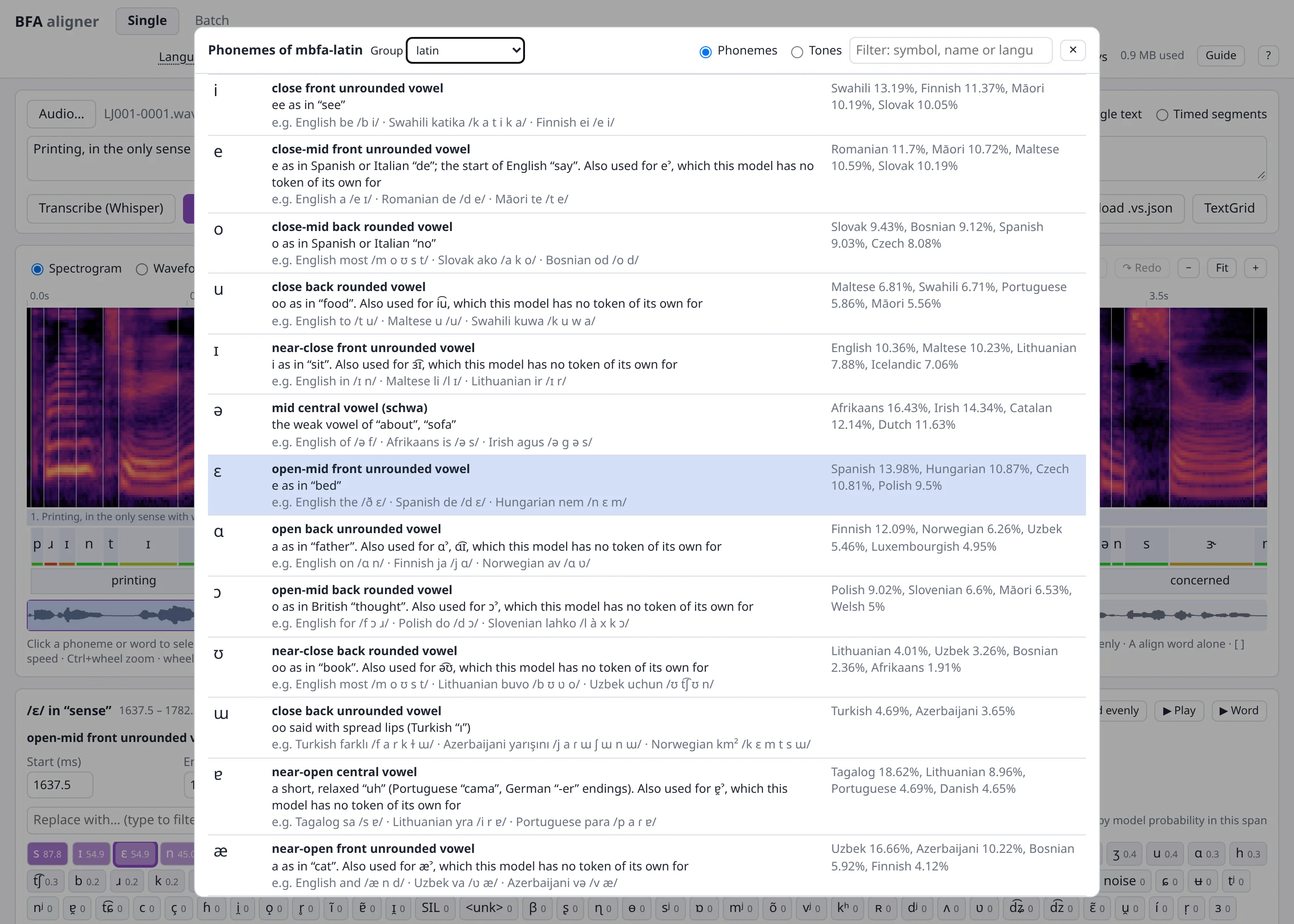
Guide in the top bar opens a searchable list of every phoneme of the current language's model. Each entry has its name, what it sounds like, real example words (written the way the G2P writes them, which is exactly what the aligner sees), and the languages that use it most. Group switches to another language group. The Tones tab explains the tone numbers of Mandarin, Cantonese, Vietnamese and Thai.
The same text appears when you hover a phoneme in the editor or a token in the replacement list. The full guides, with suggested boundary conventions per group, are the phoneme guides: one per language group, and the tone guide.
Keyboard shortcuts
Shortcuts work when no text field has the focus.
| Key | Action |
|---|---|
| Space | Play the selection (or the visible part); again to stop |
| Esc | Stop |
| ← → | Previous / next phoneme |
| W | Play the selected phoneme's word |
| E | Spread the selected word evenly |
| A | Align the selected word alone (or into the dragged span) |
| [ ] | Slower / faster playback |
| Del, Backspace | Delete the selected phoneme |
| Ctrl+Z, Ctrl+Shift+Z / Ctrl+Y | Undo, redo |
| Ctrl + wheel, wheel | Zoom, scroll |
| Double-click | Zoom to a phoneme, word or segment |
| Enter (in the token filter) | Relabel with the first match |
What is in the downloaded files
A .vs.json from here is BFA's ordinary output format (see the
developer guide), with a few additions:
| Field | Where | Meaning |
|---|---|---|
audio_file |
header | Name of the audio file; used to pair files in batch mode |
duration |
header | Length of the audio, in seconds |
edited |
segment, phoneme | Changed by hand |
realigned |
phoneme | Placed by Align word |
seed |
header | Uniform seed: method, the 20–40 ms range, the random number generator and its seed, date |
seed_words_ts, seed_phoneme_ts |
segment | The seeded times the annotator started from. Compare them with the final times to measure how far each boundary was moved |
The seed's offsets themselves are not stored, so a seeded file does not reveal the alignment it came from.
The TextGrid has a words tier and a phonemes tier (IPA labels) covering every segment. Tone, confidence and edit marks are not included.
Where your work is kept
- Everything is saved in the browser (IndexedDB) as you work. It reaches your disk only when you download it, so download regularly.
- Each save is read back to check it was kept. If the browser runs out of space, a red banner says so. Download your work, then turn off Keep audio or clear the batch list.
- With Keep audio on, audio and its spectrogram are stored too, for the number of days set beside it. With it off, only alignments are kept, and after a reload you choose the audio again.
- Settings (language, speed, padding …) are remembered per browser.
- Another browser, a private window or another computer starts empty: move work between them
with the
.vs.jsonfiles.
Troubleshooting
| Problem | What to do |
|---|---|
| Red banner "Cannot reach the BFA server" | The terminal running balign --web was closed. Start it again and reload the page. |
| Align is slow the first time | It is downloading the models (about 1.3 GB). Later runs start in seconds. |
| "audio not loaded — choose the file again" | The audio was not kept (Keep audio off, or it expired). Choose the same file; the alignment is still there. |
| Alignment failed for Chinese, Japanese or Thai | Install the segmenter extra (see Start it) and restart the server. |
| A pause is swallowed by a phoneme | Check that SIL at pauses is on and the text has punctuation there, or type <SIL>. Or shorten the phoneme and insert a SIL. |
| A word is badly off | Select it and press A, or drag over it and use into this span. |
| Boundaries cannot be dragged on the spectrogram | You are zoomed out too far; zoom in, or drag them in the phoneme tier. |
| Browser storage full | Download everything, then turn off Keep audio or clear the batch list. |
How it works
Files
web_interface/
  server.py        Flask app and routes; `balign --web` starts it
  engine.py        model cache, job queue, the align / align_word / analyze / transcribe jobs
  static/
    index.html     the page
    app.css        styles (light and dark)
    js/app.js      wiring: top bar, input card, inspector, batch list, guide, keyboard
    js/view.js     the editor canvas: drawing, hit testing, dragging, zoom
    js/model.js    the alignment and every edit on it; uniform seed; Align word merge; export
    js/audio.js    decoding, playback, time-stretch (WSOLA) for slow playback
    js/api.js      jobs and the packed arrays the server sends
    js/store.js    IndexedDB storage with verified saves
    js/tooltip.js  the tooltips
    js/zip.js      the batch zip
    guides/        phoneme and tone guides as JSON (generated)
    demo/          the "butterfly" demo clip
There is no build step and no CDN: the page works offline. In the repository this directory sits
at the top level; pip installs it as bournemouth_aligner.web_interface (see setup.py). The
guides (the JSON here and the Markdown in docs/phoneme-guides/) are generated by
tools/build_annotation_guides.py: it runs the FLEURS dev transcripts
(text only) through the G2P, and the descriptions are written in the script itself.
Server
The browser sends the audio with every job, so the server never stores, lists or reads user files.
| Route | Does |
|---|---|
GET /api/info |
Version, device, languages by group, Whisper models, tone vocabulary, demo clip |
GET /api/inventory?lang= |
The language group's token list and phoneme groups, without loading a model |
POST /api/jobs |
Starts a job (kind, params JSON, audio); returns its id |
GET /api/jobs/<id> |
The job's state, stage and result; the page polls this |
| Job | Does |
|---|---|
align |
BFA on the given segments (punctuation_sil from the switch). Returns the .vs.json plus the analysis |
align_word |
BFA on one word in a window. The word's current labels go in as gold_ph, so the G2P is not used. Returns the phonemes' times |
analyze |
Only the analysis, for a .vs.json loaded from disk |
transcribe |
Whisper (through transformers, long-form) into timed segments |
- One worker thread runs jobs in order.
- At most two aligners (one per language group) and one Whisper model stay loaded.
- The analysis is what the editor draws and scores with:
- an 80-band mel spectrogram with 5 ms steps, as uint8
- per segment, the model's per-frame phoneme (and tone) probabilities, square-root-scaled to uint8
- Confidence is the peak probability over a phoneme's own frames, as BFA computes it, so the browser can recompute it after every edit without asking the server.
Future development
- ONNX models on the server. People will mostly run this on laptops, so speed matters. The
aligner network moves to ONNX Runtime, hoped to be about twice as fast. The models stay on the
backend; nothing moves into the browser. The web side needs no change as long as
BFAkeepsprocess_segmentsandframe_posteriors; the work is in the core. The current ONNX export inbournemouth_aligner/cpp_onnx/covers only the old CUPE/ph66 models. Measure laptop times before and after: torch CPU against ONNX, with the G2P left as it is. - An all-in-one installer for people with no programming experience, especially linguists: one download for Windows, macOS and Linux that bundles Python, a CPU build of PyTorch, the models, and a start menu entry or desktop icon that opens the page. The segmenter extras for Japanese, Cantonese and Thai should be included.
- std models only. The ph66 set is good for benchmarks, but it needs espeak-ng, which is fickle to install on Windows and macOS. The std models need only a PyTorch (later ONNX) model, which packs easily. ph66 will not be offered in the interface.
- Annotation work:
- Record the annotator's name and the time spent per clip in the
.vs.json, to plan work (for example a one-person-week budget) and report it. - A script that compares two annotators' files (inter-annotator agreement), and seeded against final times (how far boundaries were moved).
- Faster pause fixing: one key to turn the selection into a
SIL, or to cut a pause out of the phoneme that swallowed it. - Detach a shared boundary (for example Alt-drag) to open a gap without deleting a phoneme.
- Keep undo history across reloads.
- Long recordings. The 5 ms spectrogram is about 10 MB per 10 minutes of audio. Use a coarser step when zoomed out, or send it in tiles.
- Tests. pytest for
engine.py, and a browser smoke test undertests/. The checks so far were Playwright scripts run by hand.